
iframe embed and sharing
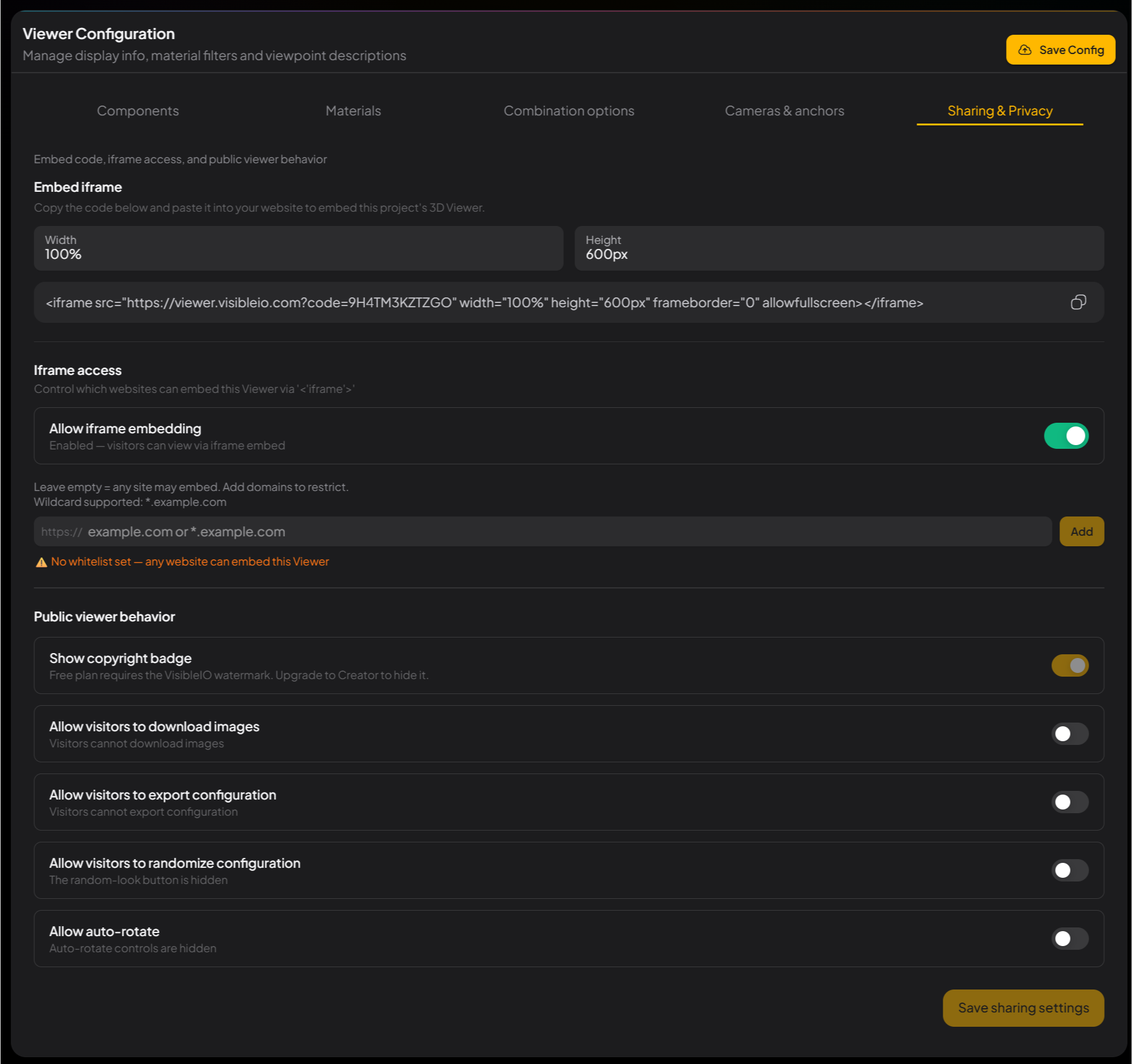
When Viewer is ready, open Viewer Configuration → Sharing & Privacy. Copy the iframe snippet, then lock which domains can embed it. An empty whitelist means any site can embed, so add your domains before a live page goes out.
-
1Copy the Embed iframe code
Under Embed iframe, set Width / Height (for example 100% × 600px). CMS builds the matching
<iframe>snippet. Copy it and paste it on the target site. To change the size, edit Width / Height here and copy the snippet again. -
2Set Iframe access
This block decides who can embed Viewer. Turn embedding on, then add your domains to Allowed domain whitelist.
Iframe access options Option What it does Tip Allow iframe embedding Master switch. Off = no external site can embed this Viewer in an iframe. Turn it on when you embed publicly. Leave it off for internal previews. Allowed domain whitelist Domains that may embed, for example example.comor*.example.com.An empty whitelist lets any site embed. On a live site, add only your domains. -
3Set Public viewer behavior
After iframe embed, these three switches control what visitors can still do in Viewer. Download and export are business decisions — leave them off for a simple showcase.
Public viewer behavior options Option What it does Tip Show copyright badge Shows the Powered by VisibleIO badge in Viewer. Usually left on. Allow visitors to download images Lets visitors download the current image. Turn on if the business needs it. Turn off if customers should not take files. Allow visitors to export configuration Lets visitors export the current material / configuration pick. Turn on when customers need to take the selection with them. Leave it off for a simple showcase. -
4Save Config
When the options look right, click Save Config. Then open the live embed page or preview link and confirm the iframe loads and the permissions match. Unsaved whitelist changes do not apply.