
Render Mask — advanced
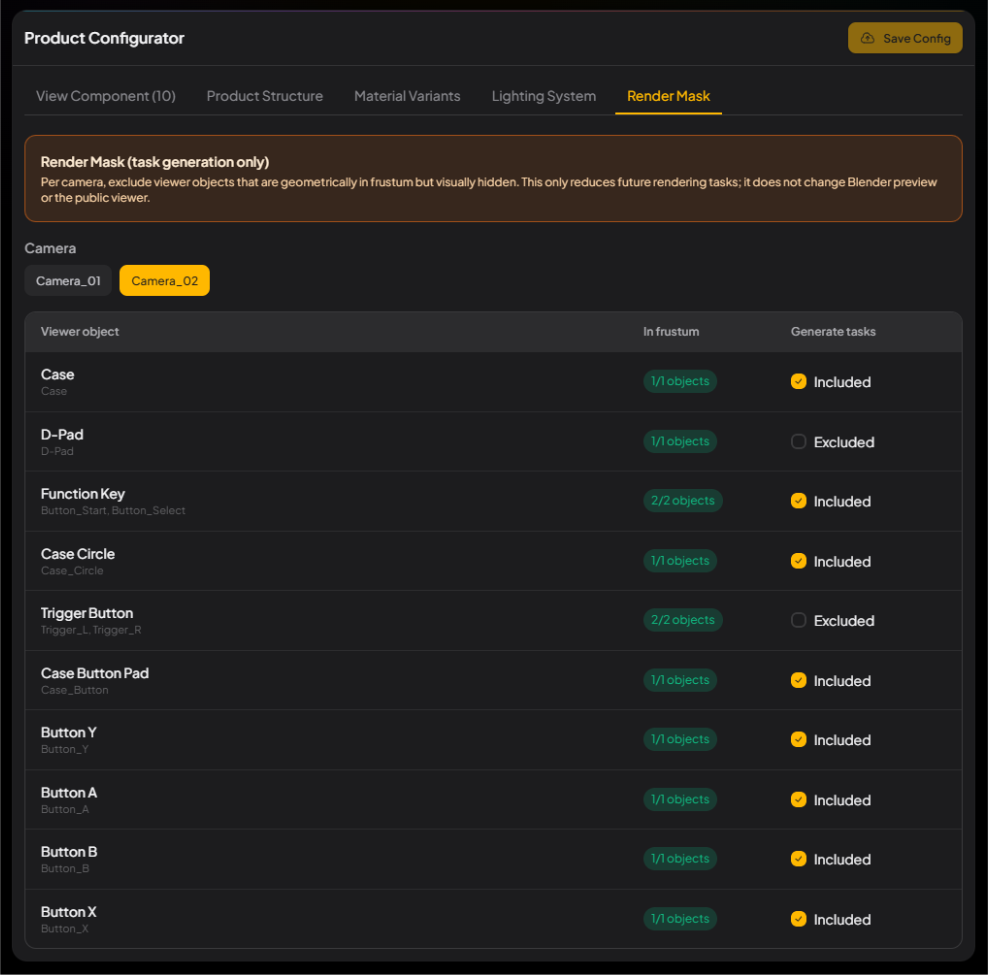
Per camera, CMS already marks what is in frame. Leave it in a simple scene. Uncheck a part that is always blocked — otherwise those frames still enter the queue. This does not change the public Viewer.
-
1Read the automatic result
On the Render Mask tab, walk camera by camera: which View Components are marked visible, which are excluded. Check that the automatic result looks right first.
-
2Uncheck extra View Components
Uncheck View Components that stay blocked, or that this camera should never show. This only affects Rendering Tasks you load after this. It does not change the Blender preview. Leave a part checked if the customer still needs it from another camera.
-
3Load Rendering Tasks again
After you change the mask, click Load Rendering Tasks again. Confirm the total dropped and that every combo you still need is there. The existing queue updates only after this click.
-
4How this relates to Viewer
Render Mask only trims what Rendering Tasks output. It does not change how the public Viewer interacts. An excluded View Component can still exist as part of the Viewer scene. To hide a part from the customer, use Product Structure instead.