
Run render tasks
When Product Configurator is done, click Load Rendering Tasks, read the image count, then start the batch.
-
1Load Rendering Tasks
At the top of CMS, open the Rendering Tasks tab, then click Load Rendering Tasks. CMS opens the count screen.
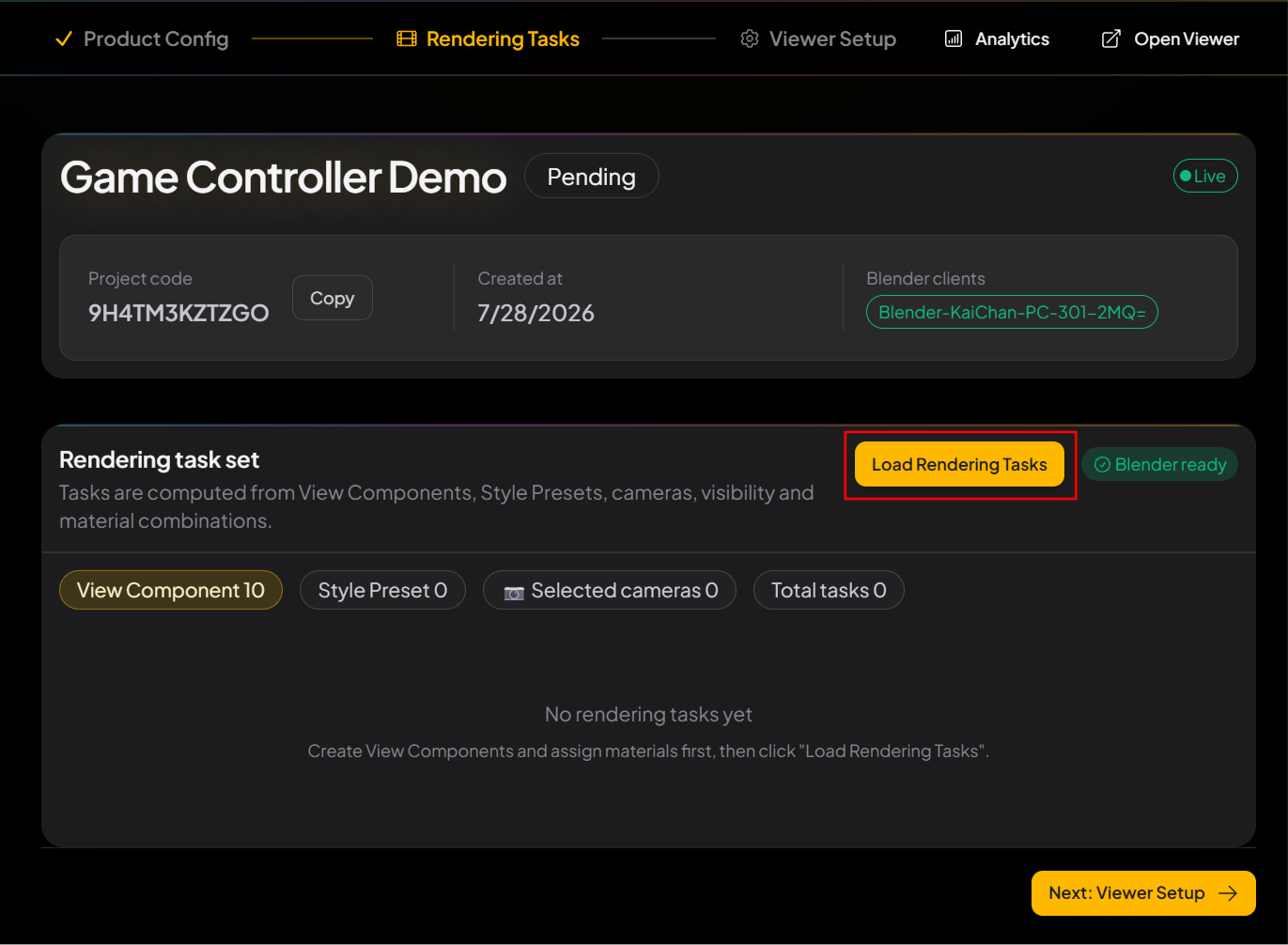
After Product Configurator, open Rendering Tasks and click Load Rendering Tasks. -
2Confirm the count
Click Load Rendering Tasks. The Generate rendering tasks window is the combo counter. Pick a Generation mode, read how many images it will make, then click Add missing only if the number looks right. The total is each group’s looks × cameras (and extra lights, if you added any).
Generation mode — pick one before you load On screen How it counts When to use Stack material constraints by group One look from each Combination group. Only the style sets you already built. Material Variants are done. This is the usual choice for a finished product. Single scope Only the combination group, component, or material constraint you pick. Everything else stays at its default. Prove one group, one part, or one constraint first, without loading the full stacked set. All combinations Every material on every part. The count explodes. Useful while you explore. After Material Variants are set, Stack material constraints by group keeps the count down. 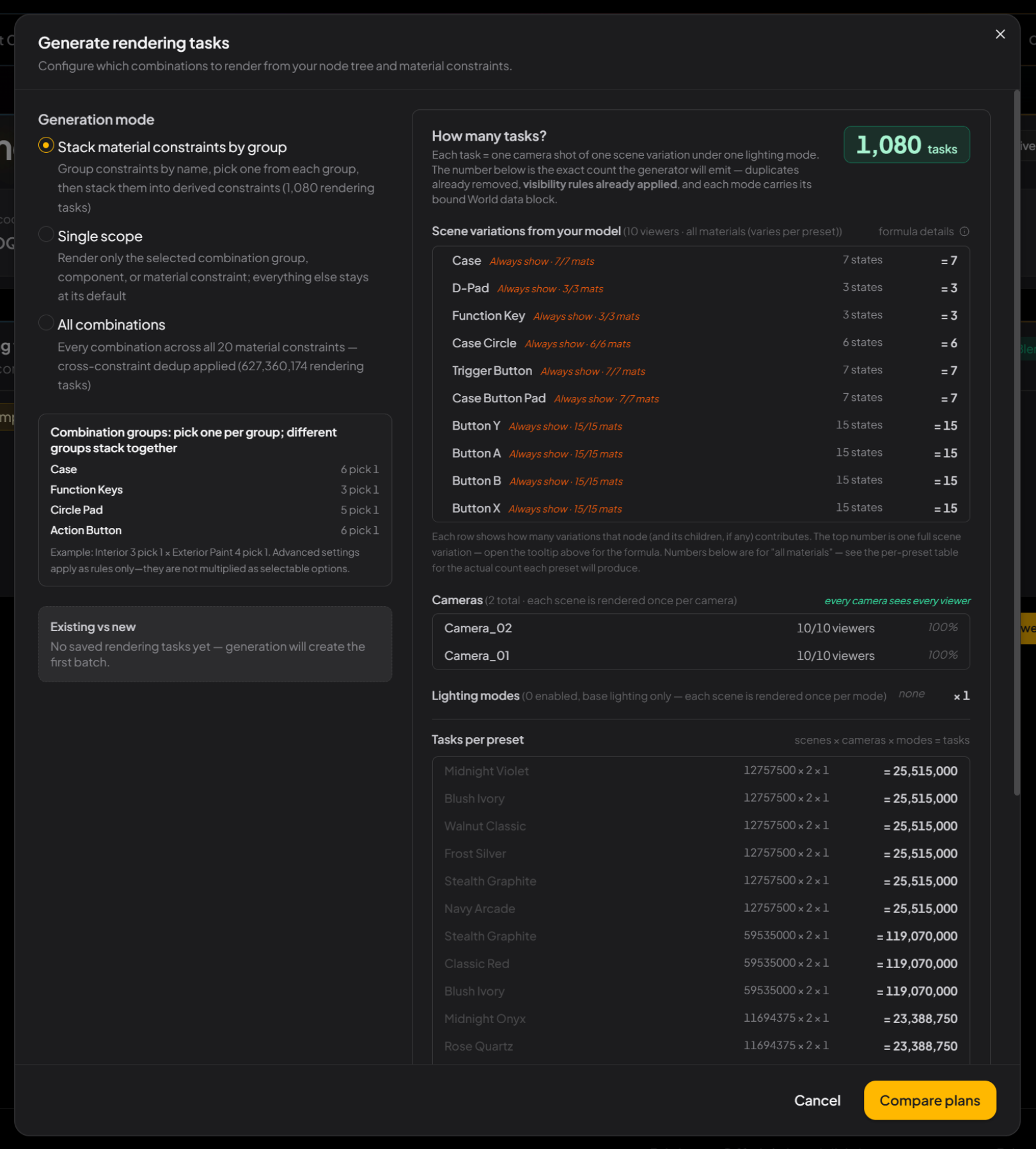
1,080 = material combinations × 2 cameras. When that number looks right, click Add missing only. -
3Review the queue
Once the tasks are in, Rendering task set lists every item. The summary up top shows View Components, Style Preset, selected cameras, and the total. Each table row is one image: one camera × one material look.
Filter to a specific combo, then act on rows in the queue. The three icons in the Actions column:
Icon What it does Blender icon Preview that task’s materials in Blender. Star Set this task as the default Viewer shot. Rotate arrow Re-render that one task — use this when a finished row needs another pass. 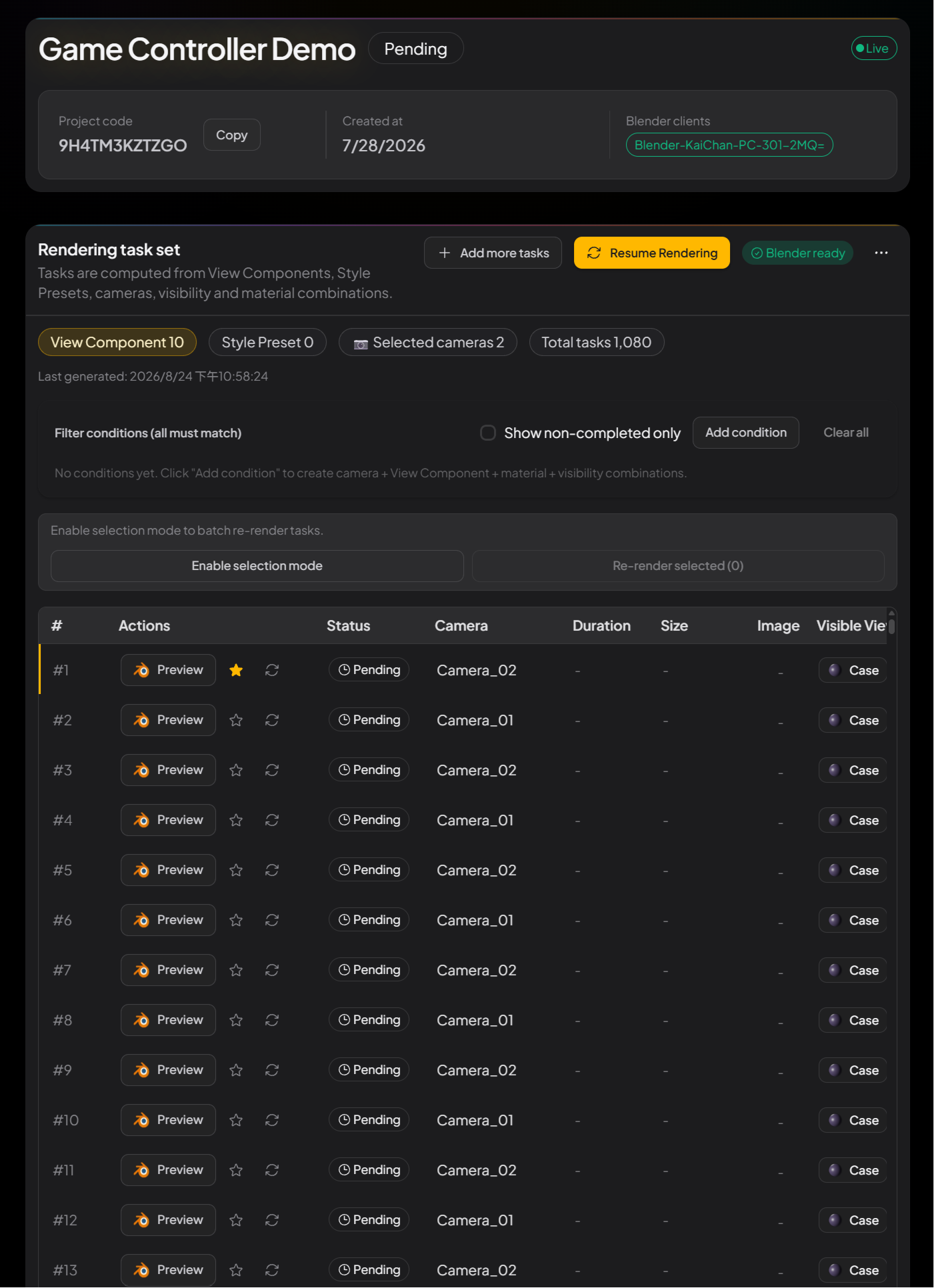
The queue is ready. Each row is one camera × material combination. -
4Start rendering and watch progress
When Blender and the CMS page both look healthy, click Resume Rendering to start the batch. Rendering runs in local Blender. The CMS table updates each task’s status, time, and output image. Click Stop to pause. Click Resume Rendering again to continue — the queue is already loaded.