
CMS overview
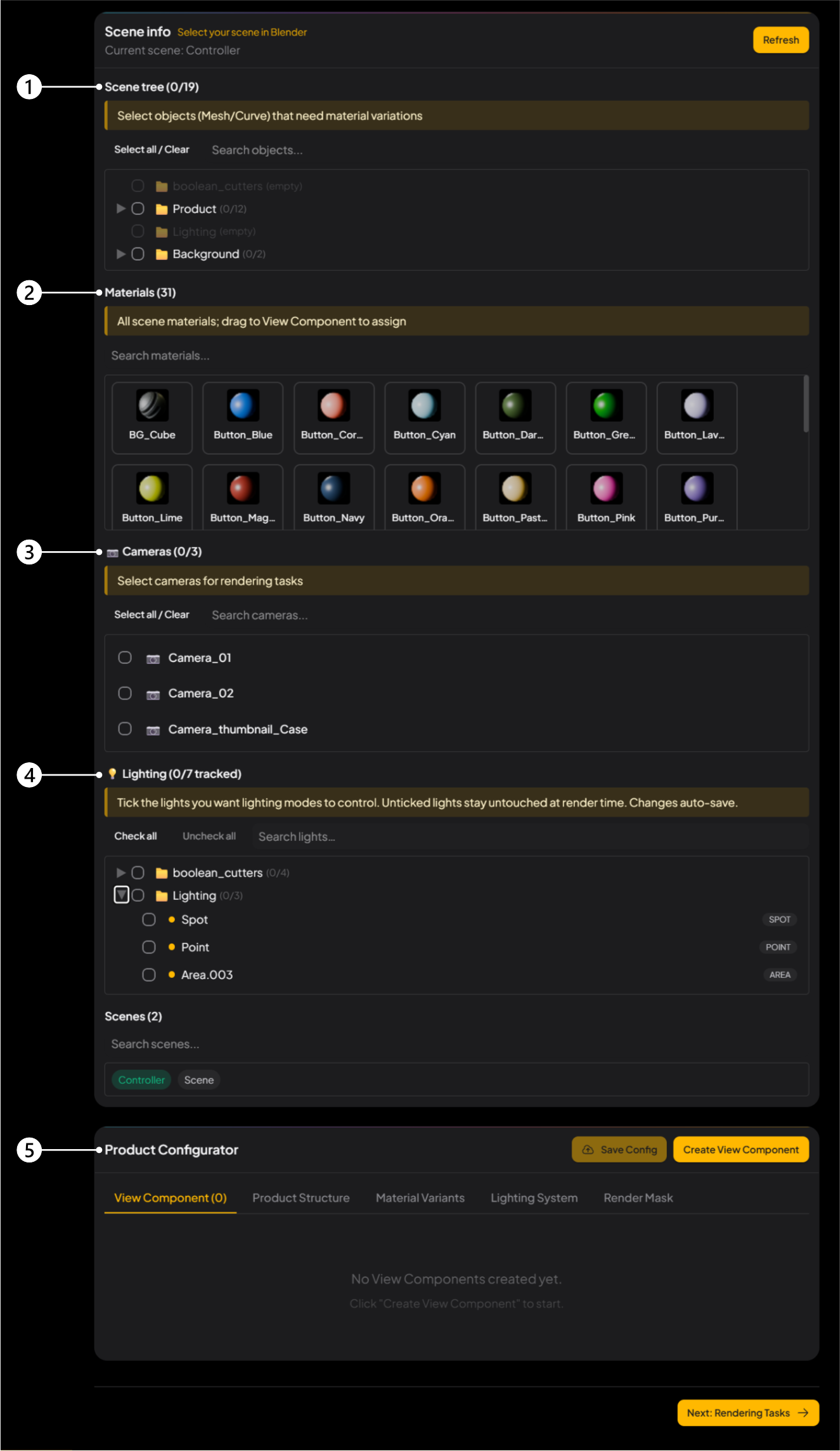
This chapter is the CMS interface: the five Product Configurator panels. They show what is already in your .blend. Scene Info at the top is the active Scene in Blender. After you change anything in the Blender Scene, click Refresh.
-
1Scene tree
Your Outliner: Mesh objects in this View Layer, same Collection stack. Check a row only if that object will change material.
-
2Materials
Every material in the Scene. Materials are created in Blender. Later you assign them to a View Component.
-
3Cameras
Cameras in this View Layer. Check the angles you want rendered. Unchecked = not in Rendering Tasks, so the count goes down.
-
4Lighting
Lights in this View Layer. Check a light to manage it in Lighting System. An unchecked light keeps its default — it does not enter the lighting-task logic.
-
5Product Configurator
Where you group objects. Same material switch → one View Component. You assign the materials in the next chapter.